
Tandem flight: move two rockets in formation#
Tandem flight asks one controller to move two rockets while maintaining a chosen separation and avoiding collisions. Each rocket has its own engine and turning command. Imagine two swimmers keeping a fixed gap: each chooses how to move, and there is no physical rope forcing the other to follow. The formation reward measures that gap; it does not require matching headings or speeds.
The arena also contains an ordered checkpoint loop. Both rockets must register each checkpoint before the next one becomes the shared target. The first arrival waits for its partner in the checkpoint accounting; its engine and motion remain under your control. Every physics frame rewards the team’s proximity to the shared checkpoint, including the rocket that has already registered it. Each registration earns a separate bonus.
This tutorial starts with a short autonomous run, then separates the two controls by hand and changes the desired formation distance. Begin with Getting started with the control laboratory if the Lab is not running. The Task tutorials index covers the other tasks.
Read the arena before moving#
Select Tandem flight under Environment. The scene contains two vector
rockets, an irregular outer wall, one central hole, and six circular checkpoint
zones. Their starting centers are [12, 12] and [12, 16]: four world units apart.
Both initially point along the positive x direction.
The checkpoint centers, in required order, are [23, 10], [45, 10], [53, 22],
[44, 34], [20, 34], and [12, 21]. This authored sequence runs counterclockwise
around the preset loop; the engine follows the listed order. Each zone has radius
3.5. A rocket registers the team’s current checkpoint when its center is inside
that zone and it has not already registered this stage. A later zone cannot advance
it early. Once both rockets have registered, the next checkpoint becomes available
on the following physics frame. After both register checkpoint six, the sequence
returns to checkpoint one; the circuit can repeat.
The team’s active checkpoint has an amber ring and fill; the other checkpoints are subdued. Its label gives the checkpoint number and how many controlled bodies have registered this stage. For example, Checkpoint 2 · 1/3 crossed means one of three controlled bodies has registered checkpoint two and two are still due. The two-rocket preset uses a denominator of two.
Each registered crossing produces a green flash that fades over 600 milliseconds.
When the last rocket registers, the amber target immediately moves to the next
checkpoint while the completed checkpoint’s green flash finishes fading. This
display update shows the new team stage; eligibility for the next checkpoint
still begins on the following physics frame. The ring, fill, and label remain
visible independently of diagnostic overlays and Tethers & formation.
Reduced-motion preferences or Animations turned off suppress the flash while
preserving the active-checkpoint display.
Switch to 2D for an overhead view. Locate the first zone relative to both
rockets and trace the route around the central obstacle. Enable Collision
geometry when you want to see the physical boundaries beneath the artwork.
Outer walls and hole boundaries carry a wall-collision penalty, but are not lethal
by default. All shipped presets disable wall death and set rewards.wall_collision
to 100. Body-to-body collisions are not configured as lethal here.
To enable wall death, open Setup → World physics → Die on wall collision,
which sets physics.lethal_walls, then choose Apply and restart. Contact by
either controlled rocket with an outer wall or hole boundary then ends the whole
world, even when the other rocket still has room to maneuver. The wall penalty is
still charged on the death frame. An old imported scene that explicitly sets
physics.lethal_walls to true keeps that setting.
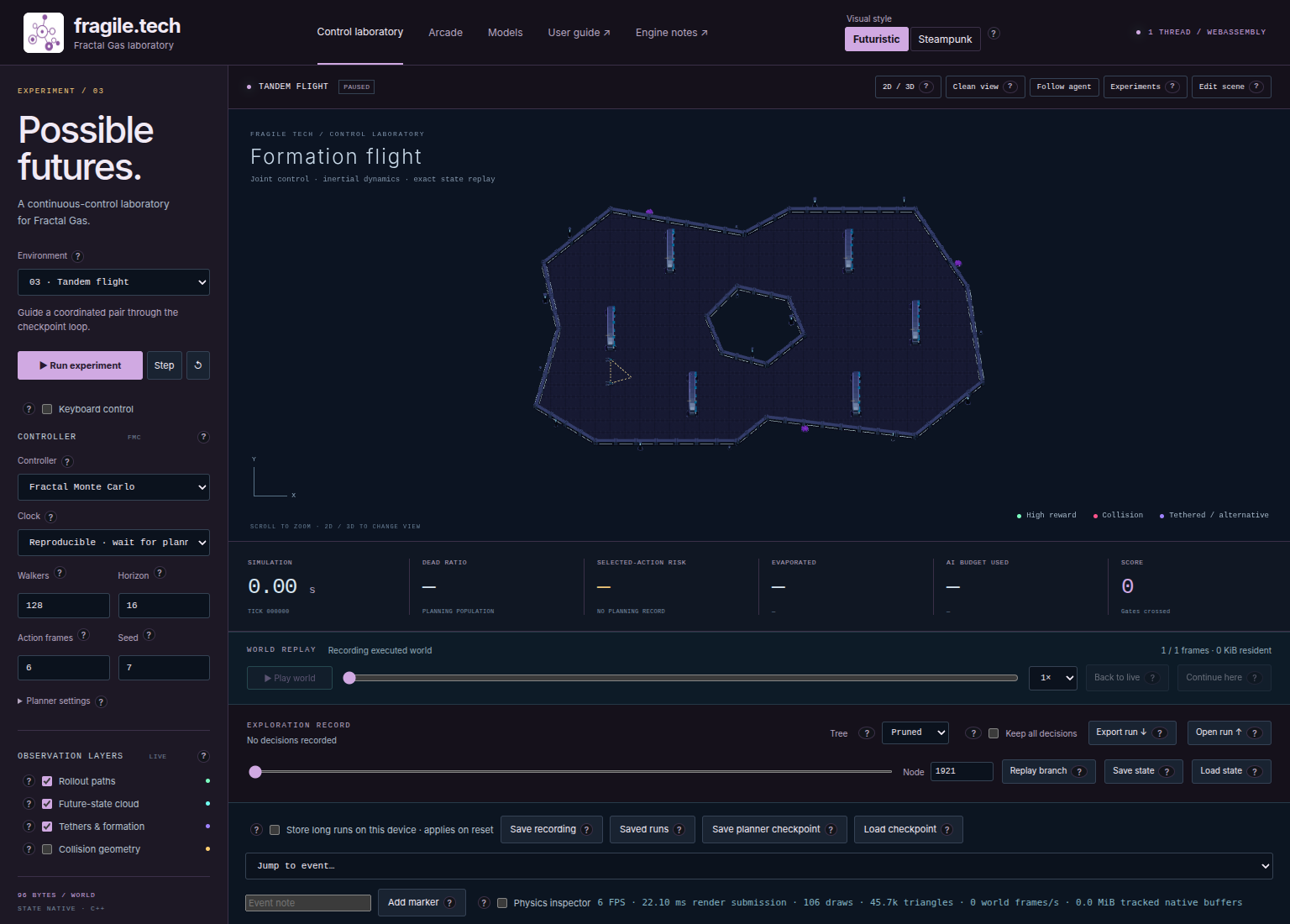
Fig. 9 The reset arena. Identify both rockets and the first checkpoint before starting; the central hole constrains the route around the loop. The screenshots on this page predate the current checkpoint display and pair-quality overlay.#
Enable Tethers & formation to connect the actual rocket centers with dashed lines: one line for two controlled bodies, three for three, and six for four. Each unordered pair gets one direct connection. The endpoints follow the centers displayed in live motion, while paused, and in replay.
Each line’s color shows that pair’s unweighted factor in
Definition 2, using its formation_pairs
target or the formation_distance fallback. The continuous scale runs from
rose/red at 0, through amber at 0.5, to green at 1. Both rendering styles
use the same palette. Read Pair quality: 0 — 0.5 — 1 · Perfect below
Tethers & formation: green means the pair has its desired separation, not
that the whole formation is perfect. There are no individual line labels or
hover readouts.
The lines and legend appear only for Tandem flight with at least two controlled
bodies and the overlay enabled. They remain available when the formation reward
weight is 0, so you can still inspect the geometry. This preset has no physical
tether connecting the pair; the lines apply no forces, and hiding them changes
neither physics nor reward.
Make a reproducible first run#
Use a small, explicit baseline so that your next experiment has a clear reference. The Lab initially requests four worker threads; change that setting to one for this walkthrough. Changing controller settings rebuilds the world and clears the current in-memory recording, so finish configuration before collecting motion.
Select Tandem flight and wait for WEBASSEMBLY and enabled run controls.
Set Controller to Fractal Monte Carlo, Walkers to
128, Horizon to16, Action frames to6, and Seed to7.Set Clock to Reproducible · wait for planning and Worker threads to
1. Leave the remaining FMC settings at their defaults, including Diversity coefficient1and Reward coefficient1in Reward terms, plus Action noise0.2and Elites0in Planner settings. Keep Perturb inherited actions checked and Tree at Pruned.Disable Keyboard control, then press ↺ to reset. This also removes any automatic first action from the initial page load. Confirm the pair is back at the start and Gates crossed is zero.
Press Step once. Wait for planning to finish. One decision supplies controls for both rockets, then advances six physics frames:
0.1simulated seconds at this scene’s1/60second frame duration. Motion can be small at this scale.Press Step a few more times, watching both bodies rather than just the leading one. Use Run experiment for a longer observation, then Pause experiment before inspecting the result. Stop after a fixed number of Steps for a comparison, or at terminal failure if it occurs sooner.
The 128 walkers are candidate futures for the entire two-rocket world. They are not 128 physical rockets. Each candidate action includes both rockets’ thrust and torque. The selected joint action can give the two bodies different commands. Neither this population size nor this horizon guarantees a completed loop.
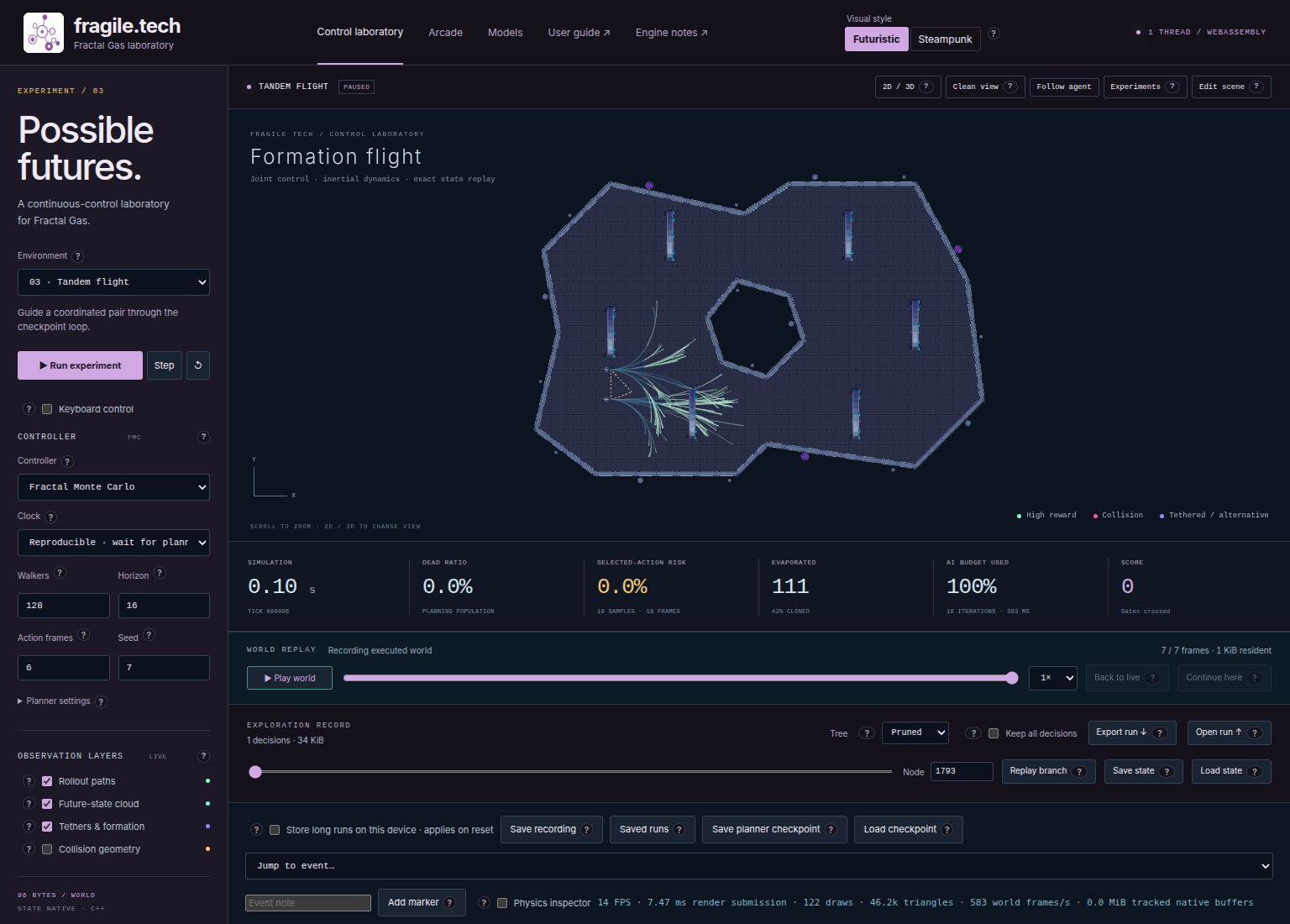
Fig. 10 After one Step from the baseline reset. This short interval helps locate the pair and its surroundings; the image is not evidence of completed checkpoints.#
Distinguish checkpoints, reward, and success#
The large Gates crossed score sums checkpoint events from both rockets. If one enters the first gate, the score increases by one. When the other enters its first gate, it increases again. While the second rocket is catching up, the first cannot register gate two, and both rockets’ positions still contribute to proximity reward relative to gate one. The next stage unlocks on the following physics frame, even if both register gate one in the same frame.
From a fresh reset, a score of six means both rockets have registered the first three checkpoints. A score of twelve means each has registered all six. Their registrations need not occur simultaneously, and the score says nothing about their separation between checkpoints. Use the pair-quality colors and replay to inspect that part of the flight.
Definition 1 (Synchronized checkpoint stage)
For \(N>0\) controlled bodies and \(M>0\) checkpoint zones, let \(c_i\) be body \(i\)’s
cumulative number of registered checkpoints at the start of a physics frame.
Set the team stage to \(s=\min_i c_i\). Only bodies in \(E=\{i:c_i=s\}\) can register
the current checkpoint, whose zero-based index in gates is \(s\bmod M\).
For that fixed checkpoint center \(g\) and radius \(r>0\), let \(x_i\) be each controlled body’s center after movement in the frame. Distances and \(r\) are measured in metres. The checkpoint-proximity contribution is
The mean includes all controlled bodies, including those that have already registered this stage. It is computed before applying \(r/(r+\bar d)\). The engine adds this contribution once per physics frame using the team stage at the start of that frame.
Each eligible registration increments that body’s counter and contributes
rewards.gate divided by \(N\). Eligibility is fixed for the frame; a stage
completed during it unlocks the next checkpoint, and changes the proximity
target, on the following frame. Bodies already ahead of the team stage earn no
additional crossing bonus while waiting; they continue contributing to proximity.
Setting either reward weight to zero preserves the counters and stage restriction.
With two rockets, the default checkpoint weight of 30 pays 15 for each
registration, so completing a checkpoint together pays 30 in total. Proximity
pays continuously. Suppose one rocket is at the checkpoint center and the other
is seven metres away. Their mean distance is 3.5 metres. With this preset’s
radius of 3.5, the proximity score is \(3.5/(3.5+3.5)=0.5\). Averaging two separate
scores would instead give \(2/3\); the engine averages distances first.
At the default weight of 1, those unchanged positions earn 0.5 each physics
frame, even if the nearer rocket has already registered. A greater mean distance
reduces the positive reward; a smaller mean distance increases it. Formation,
travel, collision penalties, and crossing bonuses contribute separately.
Accumulated reward is a different quantity. The tandem defaults give squared
travel distance weight 1, formation weight 50, wall collision penalty 100,
vehicle/body collision penalty 2, rewards.progress = 1, and
rewards.gate = 30. All other reward weights default to 0. Explicit custom
weights are honored. Formation earns reward every physics frame, even at a
constant gap, and does not depend on rewards.progress. Use Rewards →
Checkpoint proximity to change the proximity weight; its scene JSON key remains
rewards.progress. Record the weights when comparing runs. Setting proximity
and gate weights to zero lets you study formation and travel alone, while
checkpoint synchronization remains active.
rewards.wall_collision accepts values from 0 to 10000, with default 100 in
every Control Lab task, including harvest, mining, and old imported scenes that
omit the field. Each controlled vehicle touching an outer wall or hole boundary
is charged once per physics frame. Sustained contact costs reward every frame;
corners and physics substeps add no extra charges within a frame. If both rockets
touch a wall in the same frame, each incurs the penalty. Passive cargo and hooks
trigger neither wall penalties nor wall death.
Change Rewards → Wall collision penalty and choose Apply to current run
to update the penalty live while preserving the current state. The separate
rewards.collision term now covers vehicle/body contacts only. Harvest still
disables body-collision penalties; its allowed reward terms are progress,
distance_squared, catch, and wall_collision. Retained-rock physics is
unchanged, and mining retains its planning horizon of 64.
An experiment’s success criterion is separate again. For a checkpoint exercise,
explicitly choose Gates crossed in Experiments and set the desired target;
do not assume the task selector supplies a suitable goal. A target of 2 is a
useful first team-checkpoint exercise. From a fresh reset of this two-rocket preset,
a target of 12 marks one six-checkpoint circuit for each rocket under the
synchronized stage rule. This metric does not measure formation quality. Live
running does not automatically end at your informal target; batch experiments
stop according to their configured goal,
frame limit, or terminal state. A terminal frame cannot also count as success.
See Experiments, comparisons, and performance for controlled comparisons.
Control one rocket, then control both#
Manual input makes the joint-action idea concrete. First export any run you want to keep, then reset. Open Edit scene, choose Select & move, and click the second rocket without dragging it. Enable Keyboard control and click the world so a form field no longer holds keyboard focus.
Hold W briefly to thrust the selected rocket forward. A/D apply opposite turning torques. S gives zero thrust here: vector rockets have a forward-only thrust channel. They have no keyboard brake, so Space does not stop them. The other rocket receives neutral input, though neutral input does not erase existing velocity. With no body selected, keyboard control targets the first controlled body.
Release the keys. Manual frame requests stop; this is not an independent clock that keeps the rockets coasting after release. To examine coasting, apply a zero-input frame with the sliders. Disable Keyboard control before returning to autonomous control.
Now reset and expand Actuator channels in the editor. There are thrust and
torque channels for each rocket. Set both thrust sliders to 0.5, leave both
torques at 0, and press Apply action · 1 frame several times. Each click
advances one physics frame, regardless of Action frames. The full slider
vector controls both bodies, independently of selection. A thrust command of
0.5 requests half the configured maximum thrust, not a new maximum engine size.
Set the second rocket’s thrust to zero and repeat a few clicks. Compare the pair’s relative motion. Return every slider to zero before another manual test. Opening or selecting in the editor does not itself change the scene, but dragging a body or applying an edit rebuilds the world. See Controls, planners, and diagnostics and Scenes, agents, and the editor for the complete input and editing workflows.
Change only the desired separation#
The preset sets formation_distance to 4 metres, matching the initial distance
between the two rocket centers. If you omit this field in a custom scene, its
default is 3 metres. With more rockets, every unordered pair contributes one
factor, and you can choose a different target distance for each pair.
Definition 2 (Pairwise formation reward)
Let \(C\) be the controlled-body indices, \(x_i\) the position of body \(i\) in metres,
and \(d_{ij}^{*}>0\) its target center-to-center distance from body \(j\), also in
metres. For task: "tandem", the dimensionless formation score is
The engine adds rewards.formation times \(F\) once per physics frame, after
movement and before respawn mechanics. It evaluates positions in that frame;
this term is independent of checkpoint proximity. The formation weight
defaults to 50 and accepts values from 0 to 100.
Choose a target of 5 metres and measure an actual gap of 6: the pair’s factor
is \(5/(5+|5-6|)=5/6\). A gap of 4 metres gives the same factor. A perfect gap
gives 1. With three rockets there are three factors, one for each pair, and you
multiply them. Every factor is at most 1, so errors reduce the product; large
errors drive it toward 0. For finite distances the mathematical product remains
positive. A perfect formation scores 1 whenever all the chosen distances can
be satisfied together.
Moving or rotating the entire formation preserves these distances. The reward
does not demand a heading, a speed, or a side-by-side orientation. Stationary
rockets in perfect formation still earn 50 units of formation reward per physics
frame at the default weight. Squared travel and collision terms contribute separately.
Try changing one distance while keeping the rest of the experiment fixed:
Reset the baseline, run exactly ten Step decisions unless terminal failure occurs first, and export the run. Note elapsed frames, checkpoint count, and whether the gap between the rockets grows or shrinks.
Reset, open Edit scene → Edit complete scene JSON, and change only
"formation_distance": 4to"formation_distance": 8.Press Compile scene. Keep the original rocket positions and all controller settings. The rebuilt pair still starts four units apart; you changed the preferred separation, not the placement.
Repeat the same ten-Step observation and export it separately. Compare equal simulated times in the two recordings. Restore
4and compile when finished.
For individual targets, add an optional formation_pairs array through Edit
complete scene JSON. For example, "formation_pairs": [{"a": 0, "b": 1, "distance": 5}] sets a five-metre target between bodies[0] and bodies[1].
Indices refer to the full bodies array, including any passive bodies; both
referenced bodies must be controlled. Each entry needs distinct valid integer
indices and a distance from 0.1 to 1000 metres. Duplicate unordered pairs,
including reversed copies, and malformed entries are rejected. Pairs without an
override use formation_distance.
When you delete bodies in the editor, their pair overrides are removed and the
remaining indices are remapped. Duplicating a selected group copies overrides
whose two endpoints belong to that group. Choose compatible targets: for three
rockets, for example, targets of 1, 1, and 5 metres cannot all be achieved.
Use Rewards → Formation reward to adjust rewards.formation from 0 to 100.
Apply to current run changes its weight while preserving the world state;
Reset defaults restores the tandem reward defaults, including formation
weight 50. At weight 0, formation contributes nothing. Travel and collisions
also affect the decision, so doubling
the preferred gap need not make the observed gap double.
Do not change Reward coefficient in Reward terms to perform this experiment. That planner control
changes FMC fitness weighting, whereas rewards.formation changes the scene’s
reward definition. The Scene JSON reference explains their underlying
scene fields and defaults.
Save observations and recover from trouble#
Pause, use WORLD REPLAY to seek through actual movement, and select a slow playback speed when checking gate entries. Add an Event note such as “second rocket approaches gate 1”, then press Add marker. Use Export run before changing settings or compiling another scene. Open run restores the recorded motion; Back to live shows its paused endpoint. Read Record, replay, and continue experiments for snapshots, continuation, and long recordings.
Forward replay playback shows the green crossing flashes as registrations occur. Seeking to another frame updates the checkpoint ring and label without inventing a crossing flash; returning to live likewise introduces no false flash.
The pairwise formula, checkpoint-proximity reward, synchronized checkpoint rule, and updated reward defaults affect future or resimulated rewards for old scenes. Explicit weights remain in force. Historical stored reward records are not rewritten, and the scene version and snapshot layout are unchanged. Older recordings may show independently advancing rockets, so the fresh-reset checkpoint-count interpretation above does not apply to those historical trajectories.
If a gate does not count, check the team’s current stage, whether that rocket has already registered it, and whether its center is inside the available zone. An early arrival must wait for the remaining rockets; the next gate unlocks on the next physics frame after they register. If the world stops with Die on wall collision enabled, inspect the last frames for a controlled rocket touching an outer wall or hole boundary. Reset to retry; more thrust is not a repair for a terminal world. If keyboard input seems ignored, check keyboard focus, selected body, and Keyboard control. If only one rocket responds, remember that keyboard input targets one body; use the full set of actuator sliders to command both.
If the pair separates, first distinguish an objective from a constraint. There is no missing tether to reattach. Inspect the trajectory and pair targets, restore the baseline, and change one parameter at a time. Record an observed failure as carefully as a success: it tells you which part of the coordination problem your next experiment should examine.