
Getting started with the control laboratory#
Start with one world you can see. The controller makes copies of that world, tries possible actions in the copies, and chooses an action for the world on screen. The interesting part is watching how those imagined futures influence the motion that actually happens. This guide gets you from a source checkout to that first experiment, then puts you in the kart yourself.
Choose a task walkthrough in Task tutorials after your first run. Use Controls, planners, and diagnostics for every control and diagnostic, Scenes, agents, and the editor for step-by-step editor exercises, and Scene JSON reference for scene JSON fields and their defaults. Record, replay, and continue experiments explains saving and revisiting runs. Experiments, comparisons, and performance covers comparisons; Engine architecture and extension guide explains the implementation and extension points. The original Continuous-control laboratory remains a technical reference.
Know what is being copied#
Imagine two rockets carrying one asteroid. A possible future must contain both rockets, the asteroid, their connections, and the task progress. Copying only one rocket would leave out the very things determining its next movement. A world is that complete moving system. The static scene describes its boundaries, geometry, and physical parameters once; those definitions are shared by copies.
A body is one physical object within a world. A controlled body has action channels, such as throttle and steering. A joint action supplies the channels for all controlled bodies at once. The laboratory therefore supports coordinated control without pretending that neighboring agents are fixed scenery.
A walker is a planning candidate with its own complete world state. Setting Walkers to 128 does not put 128 additional karts on the circuit: it gives the planner 128 alternative worlds. These alternatives appear as paths or a future-state cloud when the chosen controller provides them.
A physics frame advances the world by the scene’s fixed time step. Every supplied preset uses 1/60 second. Action frames says how many such frames one selected action lasts. A decision is a controller choice committed to the executed world. With Action frames = 6, an ordinary completed decision advances 0.10 seconds unless the world becomes terminal before all six frames complete. The screen’s rendering frames are a separate clock.
For FMC, Horizon = 16 requests 16 Wave iterations. With six physics frames per iteration, a surviving search trajectory can look 96 frames, or 1.6 simulated seconds, ahead. Only the chosen first action is executed; the next decision starts from the resulting world. Other controllers interpret their search budget through their own rollout and optimization loops; see Controls, planners, and diagnostics.
Build and open the browser#
Run the following from the repository root. You need a C++17 compiler, CMake 3.16
or newer, Node.js 20 or newer with npm, Git, and uv. The browser build reuses an
active Emscripten SDK; otherwise, it installs Emscripten 6.0.8 in the repository’s
.cache/emsdk/6.0.8/. The build activates the SDK for its own commands, so you do
not need to configure your shell or make emcmake available yourself. The first
build needs internet access to download the SDK and JavaScript packages. No
emulator ROMs or emulator submodules are needed for this continuous-control
application.
The first command builds the native library for Python and native checks. The second builds both browser engine variants, installs the pinned JavaScript packages, copies the docs branding, and generates the lab assets. The server command stays running in its terminal.
make control-native
make control-web
make control-lab
Open http://127.0.0.1:8080/lab/.
To install or check the SDK before building, run make control-setup. To use a
custom SDK directory, set EMSDK_DIR, for example
EMSDK_DIR=/path/to/emsdk make control-web.
For a different port, replace the last command with:
CONTROL_PORT=8089 make control-lab
On your first visit, choose one of the six worlds in the Tasks chooser. Each card describes the task; selecting it loads its starting configuration. You can also choose Explore the workspace or Open saved run. The world opens paused at tick zero, so you can inspect it before the controller makes its first choice. A dismissible introduction points you to Run, vehicle selection, and the timeline. The Lab remembers dismissed guidance and your open settings sections on this device.
Wait for Step action and Run to become available. The backend indicator reports the actual thread count, for example 4 THREADS / WEBASSEMBLY. Tasks, Environment, Run, Step, and Restart stay in the toolbar. The four settings tabs are Setup, Controller, Rewards, and View; advanced properties start collapsed. On a narrow screen, open the Settings and Inspector drawers to reach the same controls while keeping the world in view.
The native library alone cannot supply the browser engine. Conversely, the
browser does not need the native shared library to run once make control-web
has produced its WebAssembly files. After changing C++ engine sources, rebuild
make control-web; after changing only lab assets or the docs logo, run
npm --prefix fractal-gas-web run build:lab. The server supplies local files
without requiring an external asset service.
To read the documentation locally, run make serve from the repository root.
It builds the Theory site and Lab guide, assembles their portal, and serves
http://127.0.0.1:8000/docs/. Opening the server root
redirects to that portal. Documentation dependencies are installed through uv
without requiring the simulation’s Python dependencies. Once the documents have
been built, make docs-serve previews them immediately without rebuilding;
DOCS_PORT=8001 make docs-serve selects another port.
Both servers provide the same local routes: /docs/ for the assembled documents
and /lab/ for the browser application. Build the application with
make control-web before opening /lab/, and build the documents with
make docs before opening /docs/ from make control-lab. You can then move
between the lab and its guide on the same port.
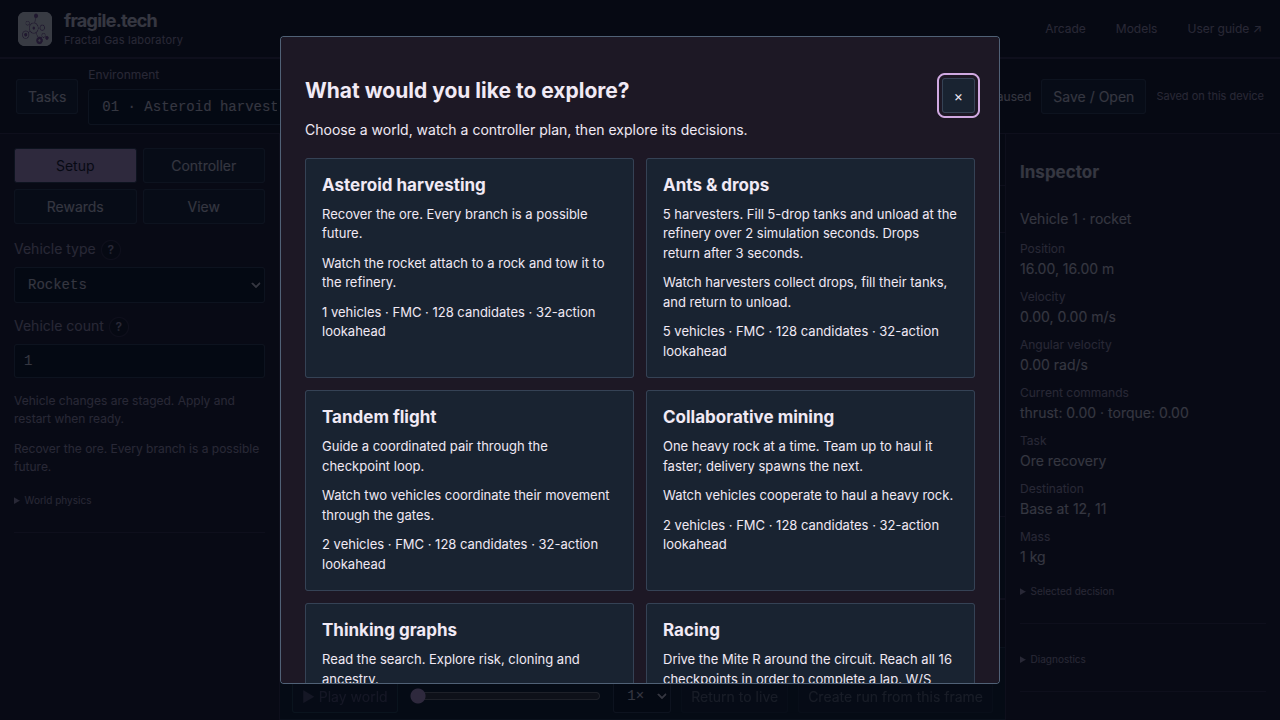
Fig. 1 The Tasks chooser introduces each world before you run it. Choose a task to load its starting configuration, or open a saved recording for inspection.#
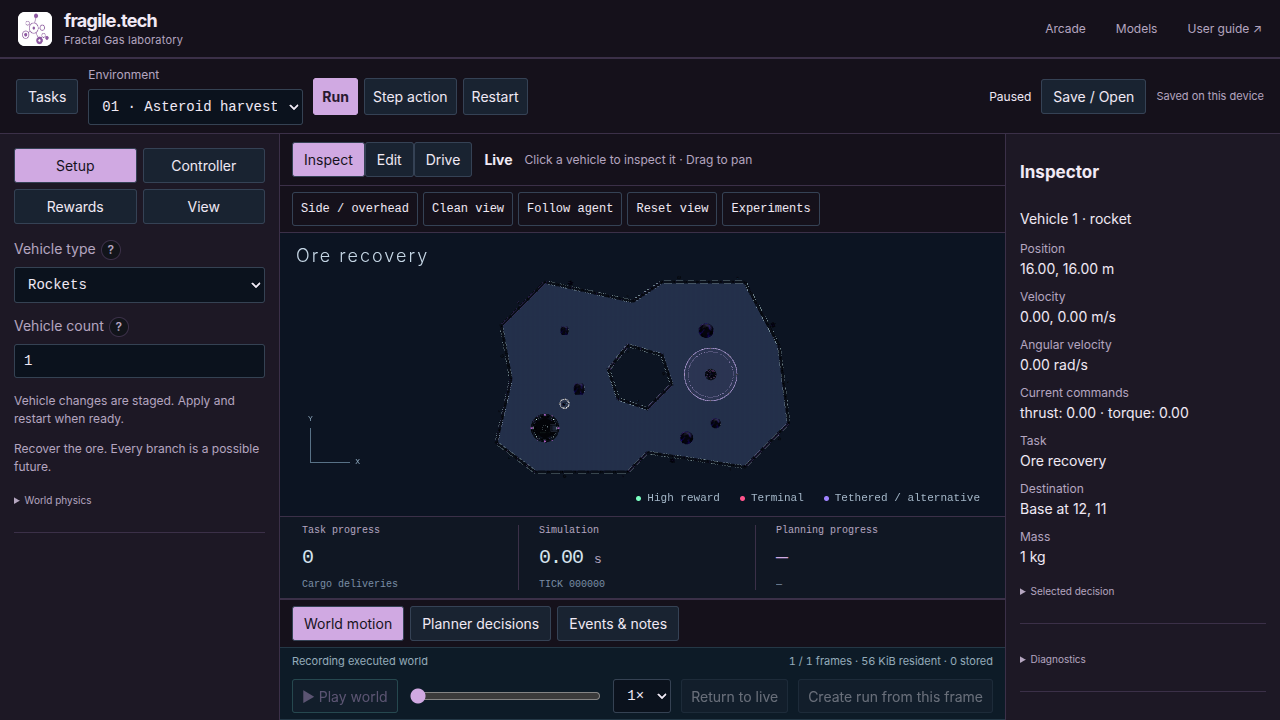
Fig. 2 Asteroid harvesting at tick zero in the desktop workspace. The toolbar stays above the world, settings occupy the left panel, and the inspector occupies the right. Task progress and the timeline sit directly below the simulation. The first-run exercise below switches this same workspace to Racing.#
Make a reproducible first run#
Use this small procedure to establish what a decision does before experimenting with larger populations. Settings are a draft until you apply them: changing three fields does not restart the world three times. The pending-changes summary shows what will change. Discard changes restores the active configuration.
Choose Racing under Environment, then Violet Circuit · Easy under Select track in Setup.
In Controller, set Controller to Fractal Monte Carlo, Clock to Reproducible · wait for planning, Walkers to 128, Horizon to 16, Action frames to 6, and Seed to 7.
Open Planner settings and leave Worker threads at 4 initially. Keep the interaction mode on Inspect.
Press Apply and restart once and wait for the controls to become ready. The circuit starts with zero completed laps and its first checkpoint as the target. If these settings are already active, use Restart.
Press Step action once. The worker completes one search and commits one action. On this fresh circuit the world reaches TICK 000006, or 0.10 s. The cloud and any recorded paths describe the search that selected the action.
Press Run to repeat decisions and Pause to stop continuous execution. Step action also pauses continuous running before requesting its decision.
Press Restart to begin again with the same active scene, settings, and seed. The Lab saves the nonempty run on this device before replacing it. Use Save / Open to name it, open saved runs, or export a portable recording.
If you change only reward terms or their coefficients, the pending action becomes Apply to current run. That retains the physical world and marks the change in its recorded history. Changes to the environment, physics, or planner settings require Apply and restart; a combined edit is applied in one restart. View changes take effect immediately.
Device saving can fail, for example when browser storage is full. The Lab keeps the current run available and offers Retry, Export, Cancel, or an explicit Continue without saving. A device save is local to this browser; export a recording when you want a portable copy.
A repeatable setup specifies the scene, seed, controller, and all its settings. Reproducible mode lets a decision finish regardless of how slowly your machine computes it. It is the useful starting point for comparing trajectories; it does not promise that a particular planner setting will solve every scene. The Experiments tool adds explicit trial seeds, budgets, and reports when you are ready to make a measured comparison.
Choose what to investigate#
The six tasks exercise different parts of the same engine. The environment picker drafts a task change; Apply and restart commits it. Racing also provides a Select track picker with six circuits in Setup. The controller picker drafts a change to how actions are chosen. A preset’s task description tells you what to pursue, while an experiment’s success criterion specifies exactly what counts as a successful trial.
Environment |
Controlled bodies |
What to try and watch |
|---|---|---|
1 |
Hook ore and deliver it to a base; watch local gravity and tether motion. Keep delivered rocks defaults on ( |
|
1–128 (default 5) |
Choose Rockets, Drones, Karts or Harvesters beneath Environment, as in every environment; rockets add two action channels and other vehicles add three. Collected drops return after three simulation seconds at seeded random positions. |
|
2 |
Maintain the requested pair distances while moving and avoiding collisions. Checkpoint counters remain available; enable |
|
2 |
Haul one heavy asteroid: slow with one rocket, faster with two. Keep delivered rocks defaults on ( |
|
1 |
Inspect tethered rocket search, cloning, ancestry, and short continuation risk. |
|
1 |
Choose one of six circuits; visit its checkpoints in order for a lap. Start with Violet Circuit, which has 16 checkpoints. |
Each linked task page includes a starting configuration, a guided run, screenshots, and recovery steps. Use Task tutorials to compare the tutorials. When you want to change a task, follow the exercises in Scenes, agents, and the editor; keep Scene JSON reference beside you for numeric options and JSON.
Violet Circuit is eight metres wide. Its walls and infield hole determine collisions; paint, curbs, and the glowing gantry supply visual orientation. The highlighted checkpoint is the next required proximity zone. A lap is counted after all 16 zones have been visited in sequence. These are proximity tests, not directional finish-line crossings: waiting at the finish or skipping checkpoints does not complete a lap. The circuit’s default experiment target is gates = 16.
Drive the kart and inspect the view#
Choose Racing under Environment, then Violet Circuit · Easy under Select track in Setup. Apply and restart, then select Drive. This pauses controller execution and opens the inspector with the controlled vehicle’s supported keys, touch buttons, and actuator sliders. Press Start driving to start continuous physics. Click the world if a form field has focus: keyboard input is ignored while an input, text area, or select element has focus.
Hold W for forward throttle; S requests reverse throttle. A/D steer, and Space applies the brake. Try W on the first straight, then brief W+A input to follow the left-hand bend toward the next highlighted checkpoint. Brake before trying a tight turn. Q/E supply lateral input for actuators with that capability; the kart has no strafe channel. You can hold the displayed touch buttons instead of keys, or use sliders for the selected vehicle’s individual action channels.
Release the keys and the input returns to neutral, but physics keeps advancing. A moving kart can coast, and a rocket can fall: releasing a control does not freeze the world. Pause stops physics. Losing window focus, hiding the tab, opening a dialog, or leaving Drive also pauses it and clears held input. While paused, Step physics frame advances one frame; Apply action · 1 frame in the inspector applies its actuator values for a single frame. Manual motion is recorded in world replay.
Choose Inspect to return to controller operation, still paused, then use Run or Step action. Drive targets the selected controlled vehicle; with no controlled vehicle selected, it uses the first controlled body. Check the inspector’s vehicle name before supplying input. In this single-kart preset, that vehicle is the kart.
Inspect, Edit, and Drive describe what your input does. The separate Live / Replay indicator describes which world you are viewing. Edit pauses execution and changes a scene draft; use its Undo/Redo controls while working, then Apply and restart or Discard. Leaving a changed draft offers those actions and Cancel. A saved run opens for replay: create a new run from a recorded frame before editing or driving it.
Use Follow agent to center the camera on the selected body, or the first controlled body if none is selected. Its button becomes Whole arena, which returns to the arena view. Scroll over the world to zoom. Middle-button drag, right-button drag, or Alt-drag pans and leaves follow mode. 2D / 3D switches between top and angled views; the underlying physics stays planar.
Clean view hides the diagnostic layers to make the vehicle and track easier to inspect; Show diagnostics restores the previous layer selection. Camera and display changes do not modify the physical world. Ordinary replay seeking also changes the displayed world without advancing physics; restoring that frame for a new experiment uses Create run from this frame. This saves the original run and starts a separate paused run with a fresh planner. The World motion and Planner decisions timeline tabs distinguish executed motion from the search that proposed it; Return to live restores the live display.
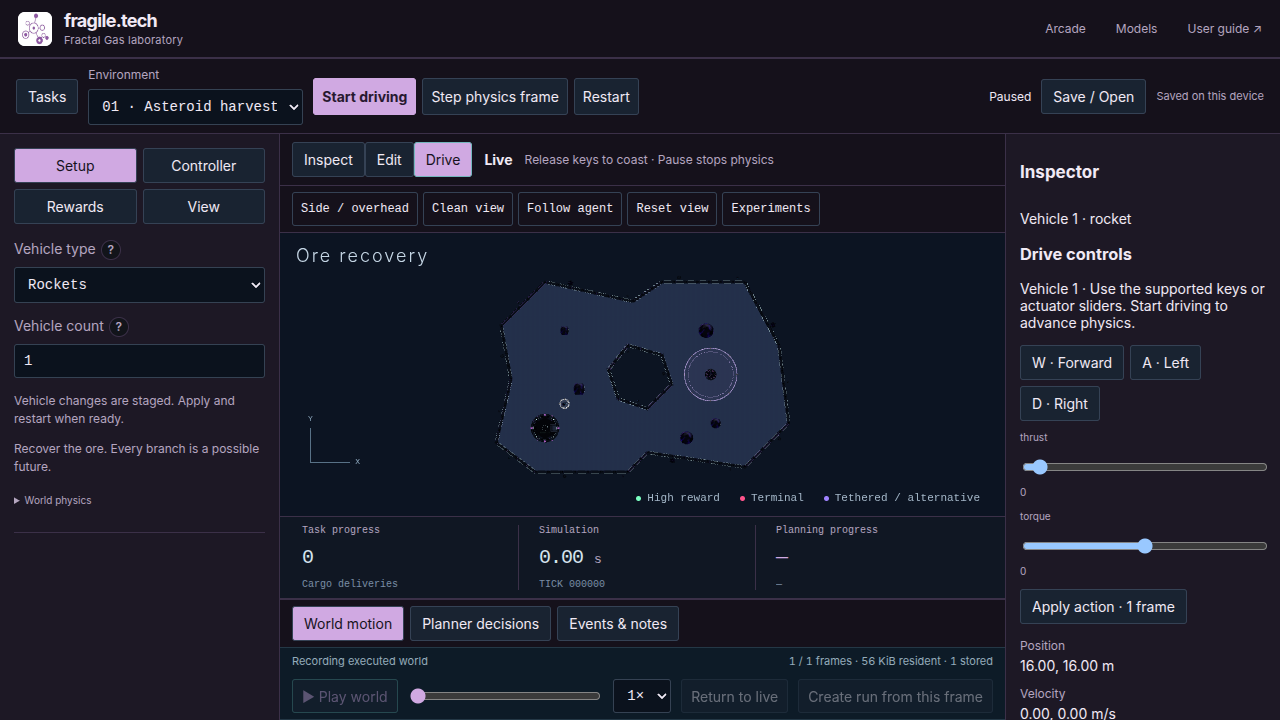
Fig. 3 Manual controls for the ore recovery rocket, still paused. Start driving starts continuous physics; Step physics frame advances just one frame. The inspector shows controls for the selected vehicle, so a kart exposes a different set from this rocket.#
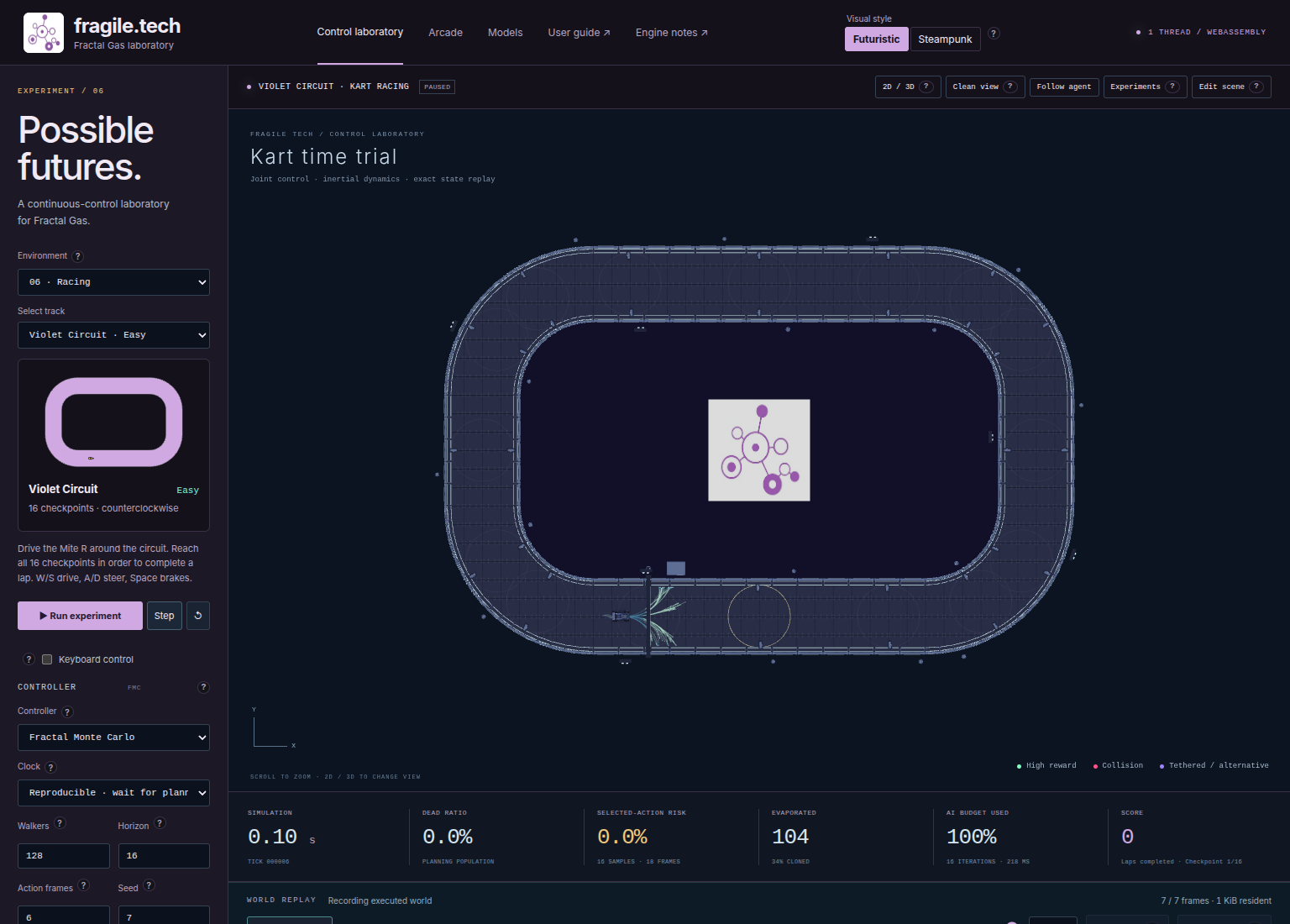
Fig. 4 The top-down view after one planner decision, pictured in the earlier Lab layout. Search paths and clouds describe possible futures; the current World motion timeline follows recorded motion.#
Choose the clock and parallelism#
In Reproducible · wait for planning, simulation time waits while the controller searches. A demanding decision takes more wall-clock time, but the next action still begins from its intended state. In Real time · fixed simulation clock, the authoritative world advances while the planner works on a predicted future root. A result is accepted only when its target tick, scene revision, and root state match the world being controlled.
When a required real-time plan is unavailable at its boundary, the worker uses the engine’s neutral action and increments Missed deadlines. Neutral action is zero clamped into each channel’s valid interval, not necessarily a brake. The scheduler limits catch-up after a long delay, so this mode is not a hard real-time guarantee. Step action requests a completed single decision in Inspect mode, even when the selected running clock is real time. Wave Jump instead labels the control Execute trajectory; Drive offers Step physics frame.
Planner settings → Worker threads accepts 1–64, default 4, for live
planning. The caller participates: 64 total threads means up to 63 additional
pthread workers. Physics work is divided across independent candidate worlds;
increasing this number does not change how many bodies a world contains or the
size of its state. Python accepts the same range, for example
ControlEngine(scene, worlds=256, threads=64); see Engine architecture and extension guide.
Keep both browser builds. The authoritative simulation uses the serial module; the planner can use the threaded one when shared-memory isolation is available. The supplied server sets the required COOP/COEP headers. The existing isolation service worker may provide isolation on another host; if isolation or the threaded module is unavailable, the planner falls back to one thread. Read the backend indicator to confirm what actually loaded. Experiments and comparison trials currently use one thread independently of this live setting.
Resolve common startup and performance problems#
Symptom |
Check or next action |
|---|---|
|
Run |
Local documentation is missing or displays incorrectly |
Run |
The server reports its port is in use |
Choose another port with |
The engine remains unavailable or a module request fails |
Build with |
The backend shows one thread after requesting more |
Confirm the threaded build exists and use the supplied isolation-header server. Reload; the backend reports actual threads, not just the requested setting. |
Thread settings or observation layers are missing |
Open Settings on a narrow screen. Use Controller → Planner settings for threads and View for observation layers; advanced sections start collapsed. |
W/A/S/D does nothing |
Select Drive, check the vehicle named in the inspector, press Start driving, and click the world so no form field has focus. Only supported keys are shown. |
Manual motion has paused |
Check whether you changed tabs, lost focus, opened a dialog, or left Drive. Return to Drive and press Start driving; key release alone returns input to neutral while physics continues. |
Decisions are slow or real-time deadlines are missed |
Start with reproducible mode; reduce Walkers or Horizon and measure again. More threads can add overhead when the batch is small. |
Rendering is slow while planning is acceptable |
Try Clean view and a less crowded scene. Distinguish rendering FPS from measured planning time using the diagnostics in Controls, planners, and diagnostics. |
A run cannot be saved |
Device-backed recording is enabled by default. Keep the current run open, then Retry or Export through the failure dialog; see Record, replay, and continue experiments. Continue without saving only when you intend to replace it without a device copy. |