
Thinking graphs: inspect the futures a rocket considered#
A rocket makes one move, but its planner may simulate hundreds of alternatives before choosing that move. This tutorial lets you examine those alternatives, follow their ancestry, and turn one recorded branch into a physical continuation. The important distinction is between a path the planner considered and a path the rocket actually traveled.
Choose Thinking graphs in Environment. Its underlying task is cargo harvesting: bring an asteroid to the delivery base. The special purpose of this page is to use that task to understand the search display. Completing the tutorial means recording a decision, selecting a node, replaying its branch, and restoring an earlier executed state. It does not require a delivery. For basic navigation, start with Getting started with the control laboratory; the other tasks are collected in Task tutorials.
Recognize the world beneath the search#
At reset, the controlled rocket starts at (20, 12), beside cargo at (23, 14).
A second asteroid starts at (47, 30). The delivery base is the circular zone
centered at (12, 11), with radius 3. A gravity well at (46, 22) influences
motion on the right of the arena. The large polygonal hole in the center and the
outer boundary charge a wall-contact penalty. All shipped presets start with
wall death off and rewards.wall_collision = 100. Body collisions are not
configured as lethal.
Under Rewards → Wall collision penalty, set rewards.wall_collision from
0 to 10000, then use Apply to current run to update it live while preserving
the world state. Each controlled vehicle touching an outer wall or a hole
boundary incurs the penalty once per physics frame. Sustained contact costs
every frame; corners and repeated contacts during physics substeps add no extra
charge within that frame. Passive cargo and hooks cause neither wall penalties
nor wall death.
To make wall contact terminal, enable Setup → World physics → Die on wall
collision (physics.lethal_walls) and choose Apply and restart. Contact
by any controlled vehicle then ends the whole world, with the wall penalty still
charged on the death frame. Imported scenes with an explicit
physics.lethal_walls = true retain that setting.
The wall penalty applies to every Control Lab task, including harvest and mining.
The separate rewards.collision setting now covers only vehicle/body contacts;
harvest still disables that body-collision reward. Its allowed reward terms are
progress, distance_squared, catch, and wall_collision.
The first cargo body has an automatic tether to the rocket. Its hook range is 3 and its rest length is 3.6. Automatic attachment is part of the environment; there is no separate hook button to press. Cargo is heavier than the rocket, so turning the rocket does not instantly turn the whole assembly. Watch the cargo and tether as well as the controlled body when judging a candidate route. A rocket path alone cannot show whether the dragged rock clears a corner.
The shipped scene now automatically enables side-on flight with downward gravity. That changes what a useful action means: propulsion pushes along the rocket’s orientation, while gravity pulls downward, so both thrust and turning matter. The rocket is not merely a marker sliding across an overhead map. Use the side view to judge its nose and vertical motion; use the overhead view to understand where the branch travels across the arena. The two views show the same planar physics from different directions.
The SCORE readout counts deliveries. Search reward can improve before cargo arrives at the base, so an attractive search branch is not a completed delivery. The scene itself has no one-delivery stopping instruction. If you later use Experiments to test delivery success, set the success metric explicitly to Cargo deliveries with Success target → 1; see Experiments, comparisons, and performance.
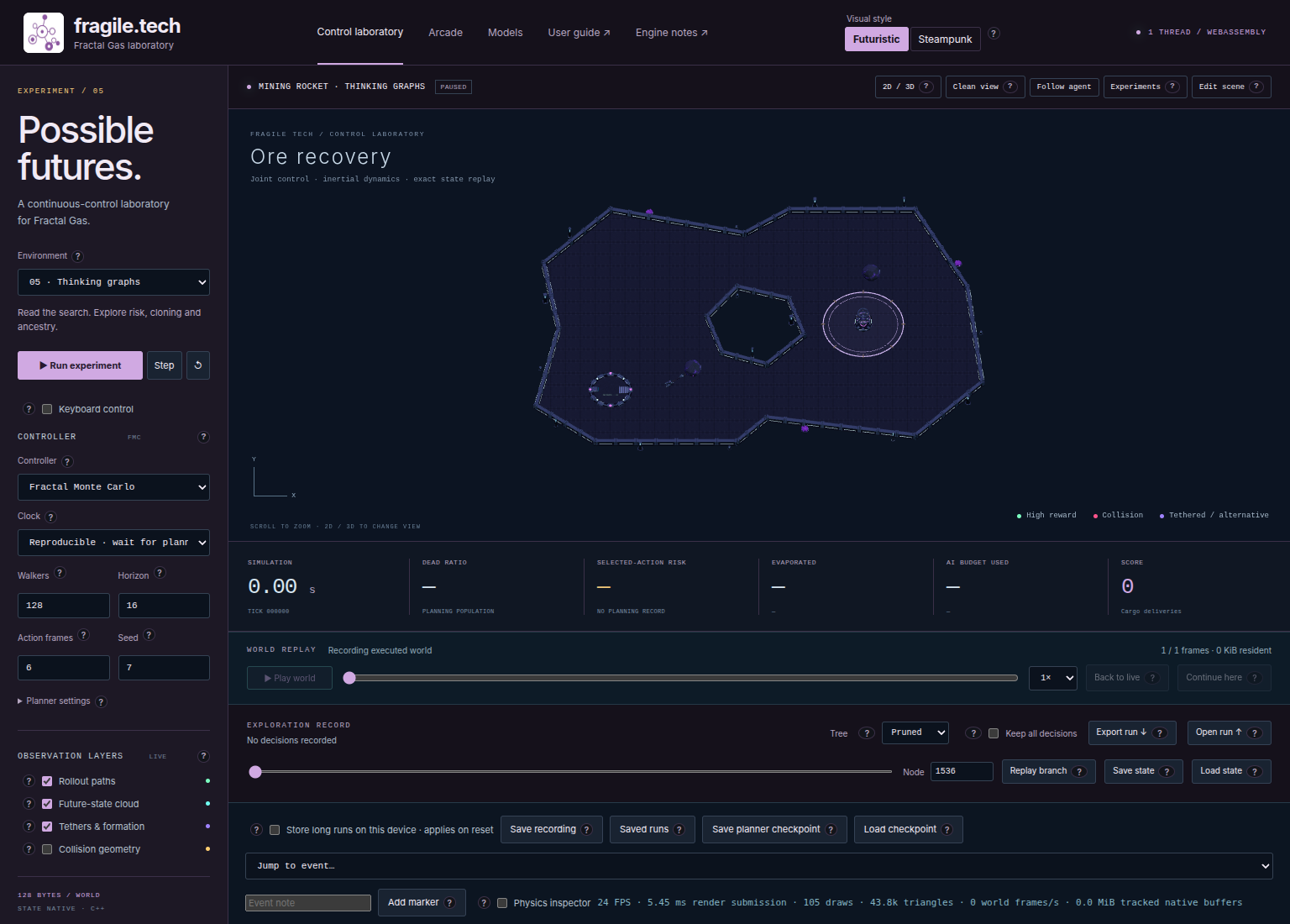
Fig. 13 The reset scene before collecting a trace. Identify the physical objects first; the rollout overlay will soon add many possible rocket positions.#
Record one manageable decision#
Use a small, explicit configuration so the first record is easy to inspect. Choosing recording detail comes before running: changing Tree rebuilds the scene and clears the session history.
Select Thinking graphs, then choose FMC under Controller.
Set Clock to Reproducible · wait for planning. Set Walkers to 128, Horizon to 16, Action frames to 6, and Seed to 7.
Open Planner settings and set Worker threads to 1. The interface default is 4; one thread is this tutorial’s explicit baseline. Leave the remaining planner settings at their initial values.
Below the world, choose Tree → Full, then check Keep all decisions. Do this before collecting any decisions you want to preserve.
Keep Rollout paths enabled under OBSERVATION LAYERS and close the scene editor if it is open. Use the camera toggle to select the overhead view for easier branch selection; return to the side view when checking orientation and downward motion.
Press Step once and wait for planning to finish. Inspect the decision count under EXPLORATION RECORD, the visible paths, and the world-frame count under WORLD REPLAY.
There is still one controlled rocket. Walkers counts candidate worlds inside
the planner; it does not create 128 rockets in the physical arena. The search
can extend well beyond the motion committed by one Step. With this scene’s
dt = 1/60 second, six executed physics frames represent 0.1 simulated seconds
if the action completes without early termination. Planning may take a different
amount of wall-clock time.
For FMC, Horizon supplies the planning iteration budget. It should not be read as a promise that every displayed branch has exactly 16 equal stages. Cloning and ancestry make the search history more interesting than that. The first short move may produce little visible displacement; zooming or examining the world recording is more useful than expecting an immediate delivery.
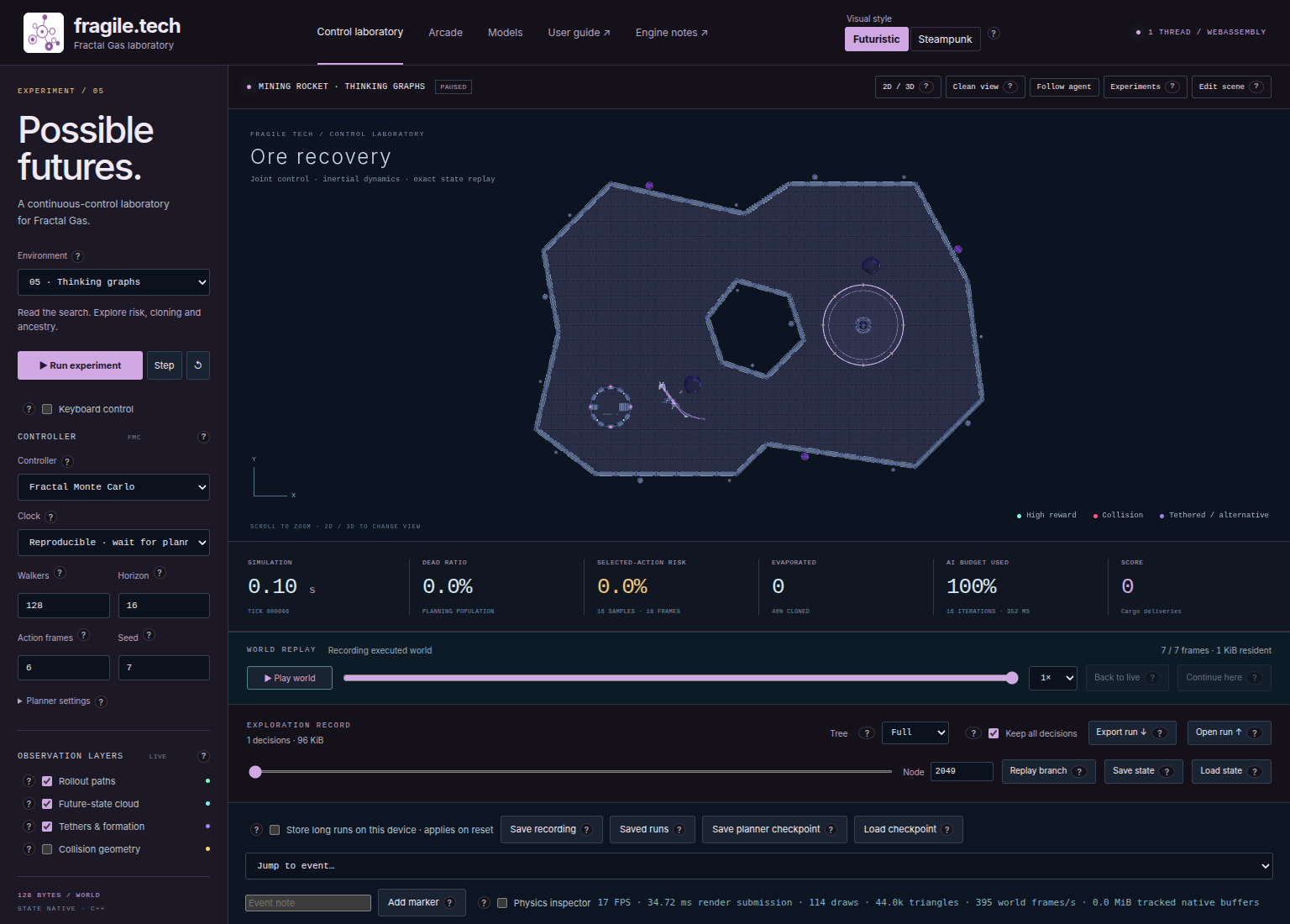
Fig. 14 One recorded decision contains alternative futures. The rocket’s short executed move and the longer search paths describe different histories.#
Read branches, cloning, and diagnostics#
Think of a node as a saved point in an imagined trajectory. Its parent identifies the preceding recorded node, and its incoming action describes how the search advanced from that parent. Following parents takes you back toward the decision’s root world. Several descendants can share an earlier route before separating.
During FMC search, a walker can clone a companion’s state and ancestry. The next simulated motion then continues from that inherited state. This operation moves search effort toward useful alternatives; it does not teleport the real rocket or duplicate physical cargo. The tree records the ancestry needed to recover these routes, rather than assigning one permanent independent path to each walker slot.
Inspect EVAPORATED / CLONED after a Step. The first number concerns nodes removed by the latest FMC pruning pass; the cloned percentage concerns the latest Wave iteration. Neither is a count of delivered asteroids. Under Full, removal is disabled, so a zero evaporation count does not imply that the planner never cloned. DEAD RATIO describes terminal candidates in the final FMC population, not how often the live rocket has crashed.
SELECTED-ACTION RISK answers another question: what fraction of 16 short sampled continuations terminated after the selected action followed by random inputs? With Action frames = 6, this probe spans 18 physics frames. Its resolution is 6.25 percentage points. A zero reading means none of those samples terminated; it is not a guarantee about the next delivery or future controller behavior. See Controls, planners, and diagnostics for the diagnostic definitions.
Select a node and execute its alternative#
Before reconstructing an alternative, preserve a return point. While paused in
the live world, press Save state. The downloaded .fgcs snapshot preserves
that world, including velocities and task state. It does not save the planner’s
population. A complete run export is useful too, but serves a different purpose.
Move the slider under EXPLORATION RECORD to the desired decision. With only one Step, there is just one decision to inspect. The readout identifies its decision number and recorded node count.
Inspect Node. Selecting a decision fills it with an existing ID from that tree. You can use this preselected node for the first replay.
To choose a different node, click near a visible branch position with Rollout paths enabled and editing closed. The picker searches recorded controlled-body positions within 1.5 world units. Check whether Node changed. In a dense area, zoom in and try a more separated branch.
Press Replay branch and wait. The worker restores the recorded native root, executes the actions along that node’s ancestry, and pauses at the resulting world. This changes the authoritative world.
Inspect WORLD REPLAY. The reconstructed physical frames form a new segment labeled Search branch / node …. Use Play world to watch those frames, and Pause replay when you reach a point of interest.
Moving the exploration slider alone changes the displayed tree and diagnostics; it does not restore the rocket to that decision’s starting position. Also, node IDs belong to a particular decision. Reusing an ID from another decision can identify a different node or no node at all. Use the populated field or the picker instead of guessing a “best” node number.
Replay branch reconstructs one recorded route through physics. Its endpoint is now a possible starting point for Step or Run experiment. It does not restore the original planner population that produced the route. If the branch reaches a terminal world, return to a usable snapshot or earlier replay frame before trying another continuation.
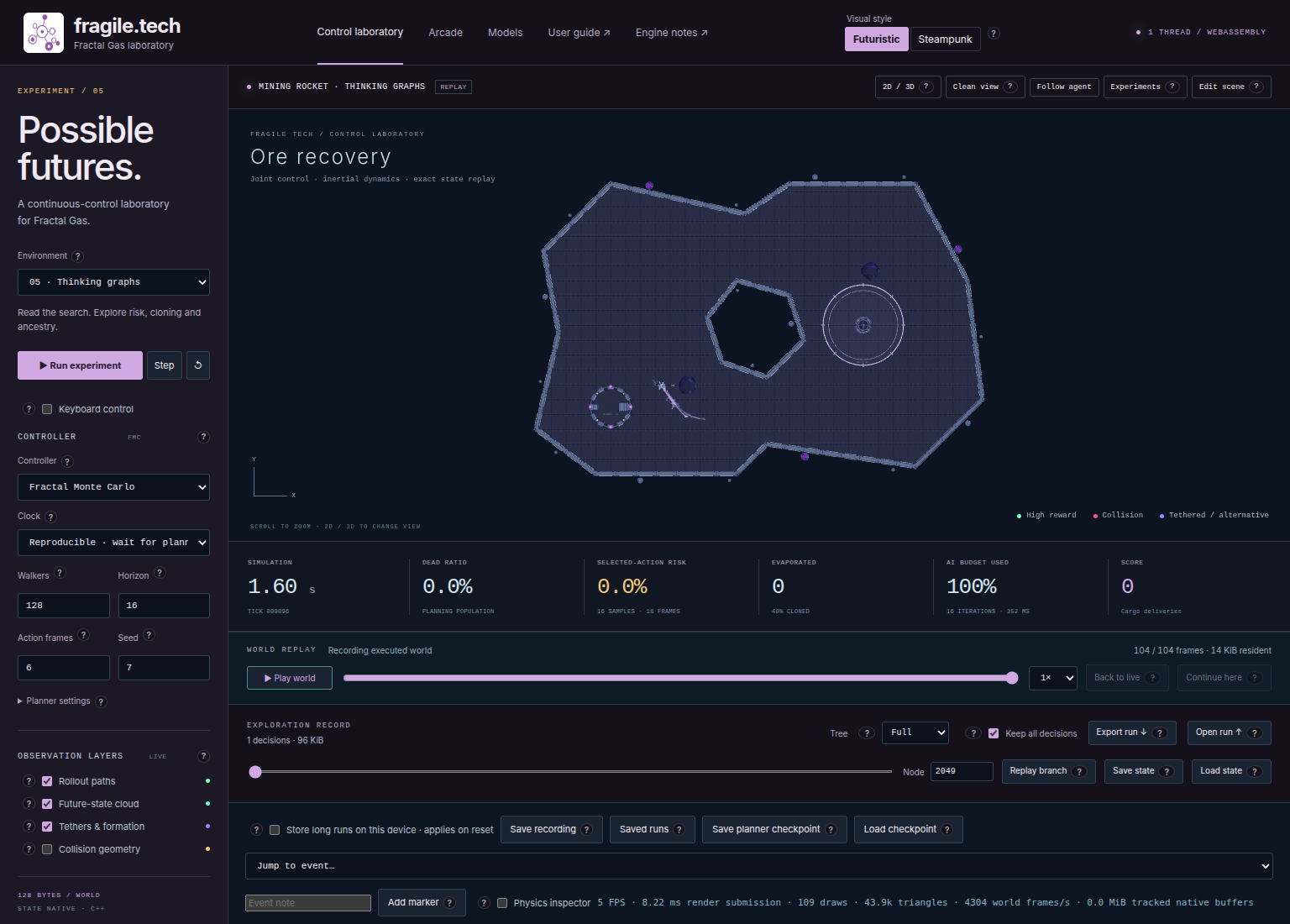
Fig. 15 Branch reconstruction changes the live world and adds physical frames to the recording. Ordinary world playback then lets you inspect those frames.#
Compare displayed history with the live world#
Try these operations separately, watching the rocket and tick readout each time. They resolve most confusion about the two timelines.
Drag WORLD REPLAY to an early frame. The viewport displays that recorded physical state. Press Back to live: the view returns to the latest authoritative world, paused at the branch endpoint.
Seek to the early frame again, then press Continue here. This time the worker restores the complete recorded world and appends a Continued from replay segment. The live tick can move backward. Press Step to request a fresh decision from that restored state.
Press Load state and select the snapshot saved before branch replay. With the matching scene still loaded, this restores that earlier live world and creates a Restored snapshot segment.
Simply pressing Step while viewing world replay returns to the existing live world. Use Continue here first when the displayed frame is the starting point you intend. Likewise, Save state saves the authoritative world, so restore a displayed replay frame before saving it as a snapshot.
None of these world restorations promises identical future planner decisions. Use Save planner checkpoint when you need resumable controller search state. The distinction between physical state, scene settings, and planner memory is explained in Record, replay, and continue experiments.
Old imported scenes that omit rewards.wall_collision also receive the default
of 100. This affects rewards in future or resimulated motion, including branch
replay; historical stored records are not rewritten. The snapshot layout is
unchanged.
Mark discoveries and control recording size#
Pause on an interesting world frame, type a short description in Event note, and press Add marker. For example, record “branch approached central hole” or “before alternative replay.” A marker attaches to the displayed replay frame, or to the latest recorded frame when live. Jump to event… returns to it. Markers annotate world frames, not abstract tree nodes; include the decision and node ID in the note when that connection matters.
Press Export run to download the scene, recorded settings, world motion,
markers, and retained exploration records. An in-memory run exports as .fgclab;
a device-backed run exports as .fgcrec. Open run reloads an archive with
playback at its first frame and the paused live world at its final frame. Check
Clock and Worker threads explicitly before continuing an imported run:
those interface settings are not included in the exported settings object.
For a second experiment, export first, then change Tree → Pruned and repeat the baseline. Pruning removes orphan leaves while protecting current walkers, elites, and needed ancestry. Compare how much history remains available, rather than treating fewer paths as worse control. Tree → Off removes native tree recording altogether; physical world recording continues.
Keep all decisions does not mean unlimited memory. Without it, in-memory records keep at most 32 recent decisions within a 64 MiB tree budget. With it, reaching that budget stops control with an export message. It cannot recover already discarded decisions. The renderer also limits drawn path segments; a large record can contain more branches than you see. If the view is crowded, reduce Walkers or Horizon for the next recorded run and keep the original export.
For modifications to the arena, continue with Scenes, agents, and the editor. Use Engine architecture and extension guide for engine details and Experiments, comparisons, and performance for controlled comparisons from a shared root.